This howto discusses setting up the
Mozilla MUA to use the
Enigmail frontend for
GNUPG/(open)PGP to provide digital signatures,
and end-to-end encryption/decryption (see [2] below for licensing and other
legal issues).
1. Obtain and install GNUPG from the download page.
If you are using Lnux/Unix download the latest source
version, compile and install with the familiar
cd ../<gnupg src dir>
./configure
./make install
If you are using win32 (win9x,NT,win2k,XP) download the binary version indicated
by a (B) and unzip (if you do not have unzip see [1] below) to the default
directory C:/Gnupg. Note: You can install elsewhere but you need to
read the README.W32 file regarding registry keys and don't forget to enter
the installation path in the enigmail settings.
Note: There is a considerable
security concern with multi-user windows installations in that the private
and public key rings are kept in a single folder, the installation folder
(not a problem in a single user installation!). The solution to the problem
is to get GPG to recognise the $GNUPGHOME environment variable set to different
folders (for separate key rings) for each login (user). However at the time
of writing the MingW32 compiled binary of GPG does not recognise the environment
variable. This problem does not exist under Unix as each user has their own
'home' directory in which private/public keyrings are stored.
If you are using MAC OS-X follow the instructions on the MAC GNU Privacy Guard page.
Note: There are other MUA frontends
for Linux/MAC/Win32 including Kmail and the proprietary M$ Outlook
Express/Outlook, and Eudora win32 MUAs. You may want to check
out the other GUI front end compenents in the WinPT for key management etc
not just the MUA plugins. A plugin for Apple's Mail on the
GNUPG is also on the frontends
page. However this howto does not cover these MUAs (Mail User Agents) or
plugins. Your mileage may vary using these tools, please read documentation
carefully!
2. Obtain and install Enigmail from the download page.
You must have the required privileges
to install software on your computer i.e. install as an administrator
on windows NT based platforms (NT, win2K, XP) or as root on linux/unix.
You must also have the Software Installation option enabled in the Mozilla
preferences under the Advanced category,
as the installation is web based. Make sure you install the correct version
for the platform and version of Mozilla you are using.
Note: The test version of Enigmail for Mac OS X is available from
the Test Download
page.
Further information regarding the Enigmail installation and usage, including
using Enigmail with the closed source PGP on a windows platform may be found
on the Enigmail help
page. There is also an official screen shots page,
and a language pack
page for international users. Note: Enigmail only works with the
older command line version of PGP v6.x.x. PGP v7+ do not work with enigmail
as there is no command line version with supplied with PGP v7+.
3. General Setup Options.
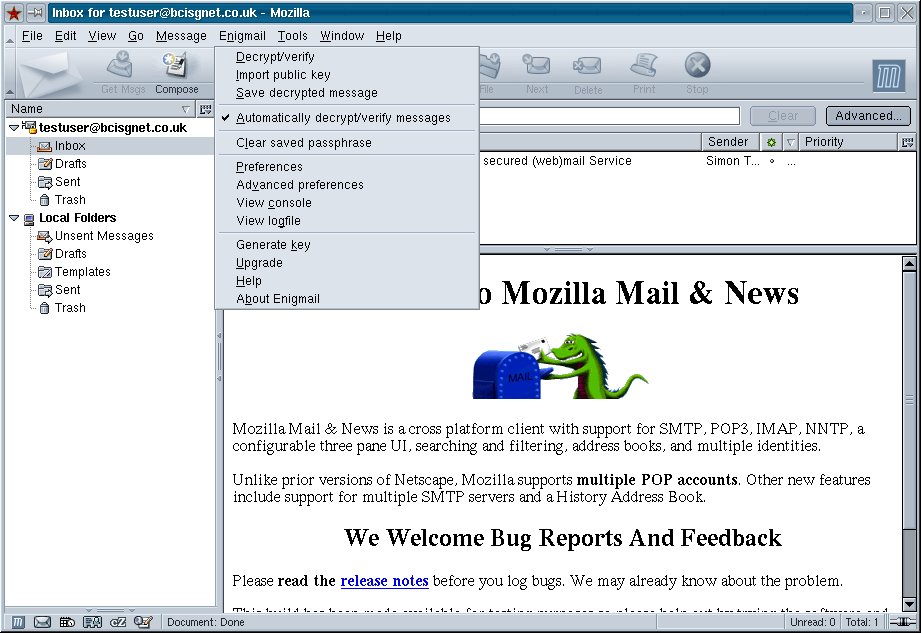
Once you downloaded (installed) Enigmail you will need
to set some default options - to access the Enigmail options select preferences
from the Enigmail drop down mail.
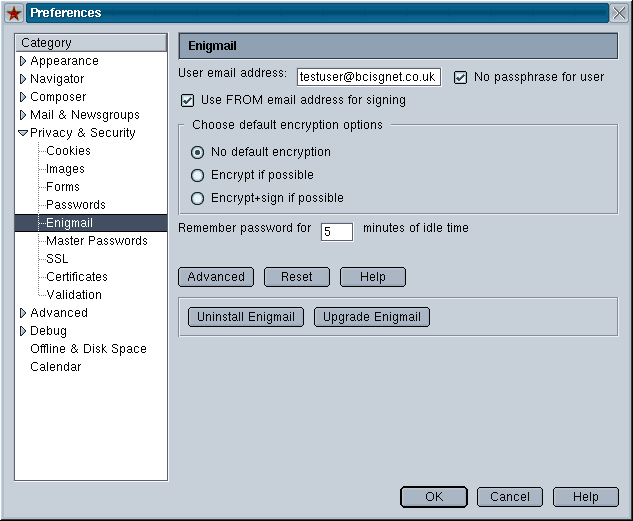
We recommend you set the options No passphrase for user,
and the Use FROM email address (this will enable the use of different
keys when using multiple accounts in a given profile). We also recommend
setting the No default encryption option as encryption should only
be used when agreed by both parties sender, and recipient. Digital signing
on the other hand is something one do without the recipient being able to
use the signature as this is a non intrusive process -
In fact the more people using/getting used to Digital Signatures the
better. Next click on the Advanced Button to set using Digital Signing
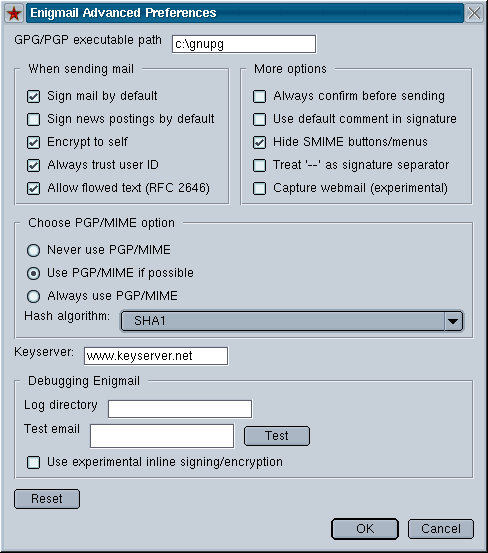
as a default and other important options .
we recommend setting the Sign mail by default option for the reasons
given above. the process is completely non intrusive and serves prorogation of PGP awareness. If you have installed
GnuPG in a folder (directory) other than the default folder or use openPGP
don't forget to add the GPG/PGP executable path. It doesn't harm to enter
the default folder (directory) either.
Finally click on OK on the Enigmail Advanced
Preferences dialog and then on the Mozilla Preferences dialog
to save the options as shown above.
4. Key generation
After installation you will need to generate a public
key which will be bound to your 'from:' address if you follow our setup recommendations
above. To generate a public key click on Generate key in the
Enigmail drop down menu.
You will be presented with the Enigmail Keygen Page Dialog. You
will need to enable the Use key for signing option, otherwise you
will not be able to use the key for signing. We recommend enabling the No
passphrase option if you don't want to have to enter the pass phrase
every time you send a digitally signed email.
Note: Signing a Key does not produce a non-broken pen icon on the
other end (if the recipient is using enigmail). It is
up to to the recipient to sign off the key in his/her keyring as a
trusted Key with the gpg --sign-key or --lsign-key option.
Unfortunately enigmail does not as yet provide an interface to that. If
do you use a want to use a pass phrase protected Key in-conjunction with
GnuPG for additional local security, disable the No passphrase option,
provide and confirm a Passphrase in the appropriate
entry boxes. You can also provide a comment for the key in the comment entry
box.
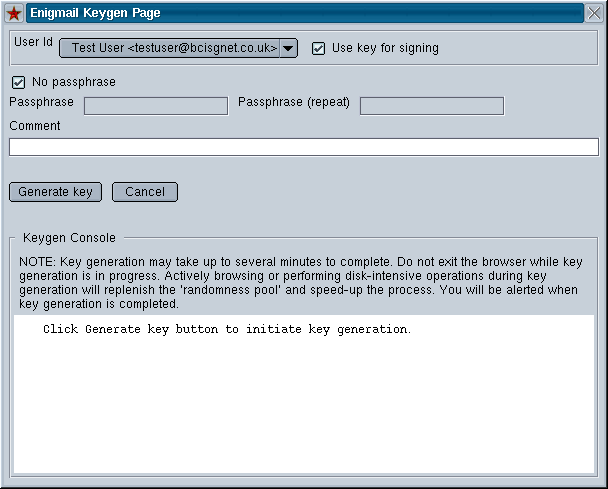
After setting the required options click the Generate Key button and confirm
the identity to be used in the key generation
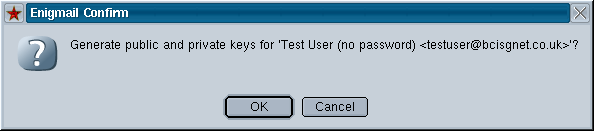
Note: the operation may take some time depending on the system.
Wait until you see the Key generation completed! pop up before pressing
any other keys in this dialog.
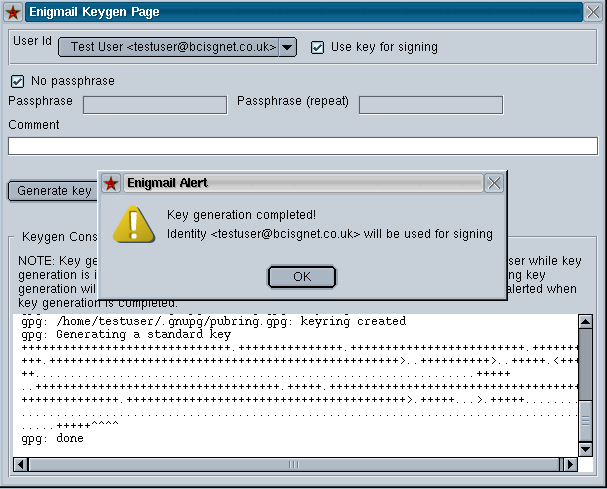
So that's the Key generation done
5. Key Exporting/Importing
Given your public key a recipient is able to verify the
contents of your mail have not been tampered with en
route, using a digital signature. To do
this the recipient must know your 'Public Key'. Your public key is also
used to encrypt the content of an email by the sender such that it can only
be read (deciphered) by you (or any else in possession
of you private key aka the UK RIP law, bear that in mind when making
your security arrangements).
Enigmail provides access to public key servers as
well as your own private key rings. Exporting a public key for inclusion
in a recipients private key ring is a matter on including your public key
in a plain text email to the recipient.
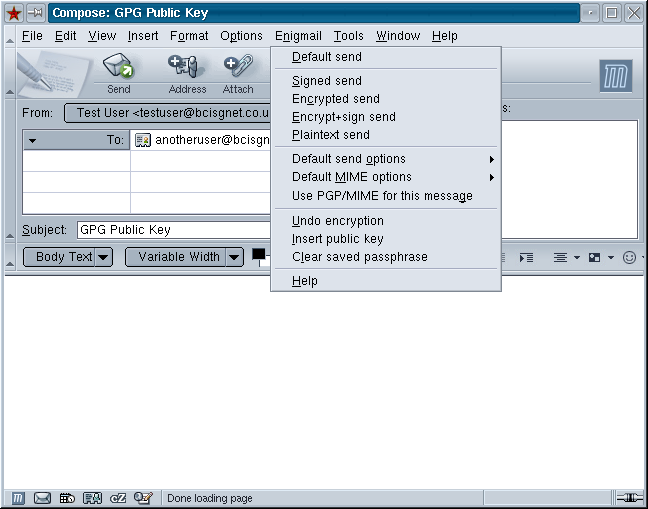
You will be prompted to confirm the User Ids (email address) of the Public
Key to be exported, of course you can enter any other User Ids (email address)
if you have more than 1 key in your key ring, but you want to sent it using
this from: address (don't ask why!).
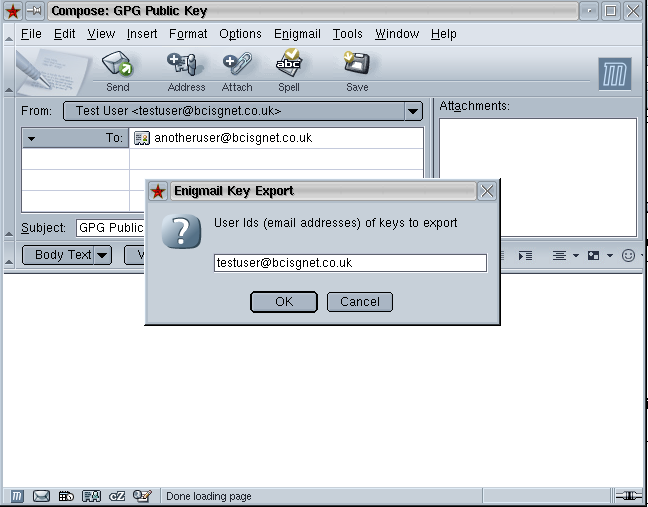
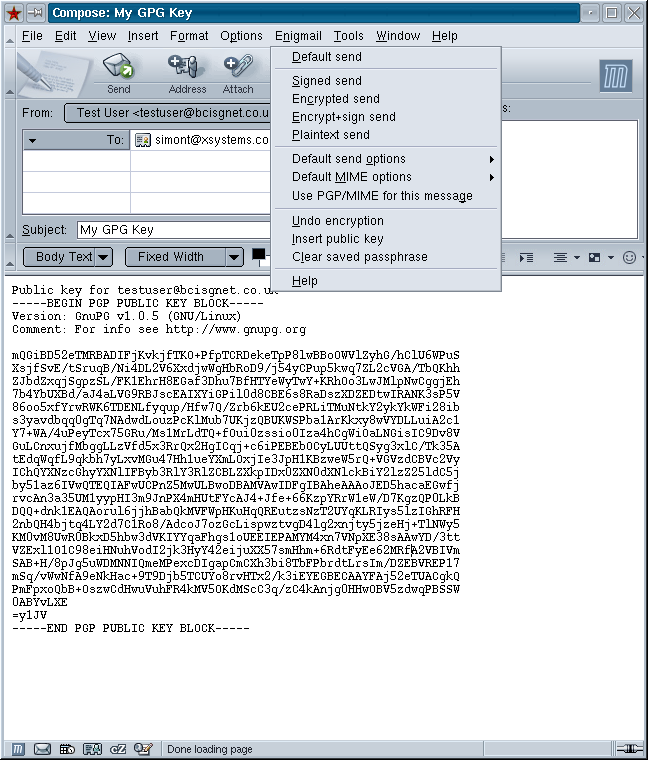
Once your public key has been included in an email text, use the Signed
send option in the composer's Enigmail drop down menu to send the email. Of course the other options work, however you can only
encrypt if you know the recipients key. Note: Using Signed
send does ensure the integrity of the content when it reaches the recipient
as the signature is generated with your private
key - Aka Its no different than signing any other mail. Once the embedded
key has been included in the recipients key ring Enigmail will show that
the message has not been tampered with. Well after all its a public key and
the best anyone can do with it is send you an encrypted message. That's why
it's call PGP as in pretty good privacy.
You can also mail your public key to us at BCISGNet mailto:key_include@keyserver.bcisgnet.co.uk
for inclusion in our Public Key Server service (http://keyserver.bcisgnet.co.uk)
other key servers may have different arrangements
please consult the relevant key server's documentation.
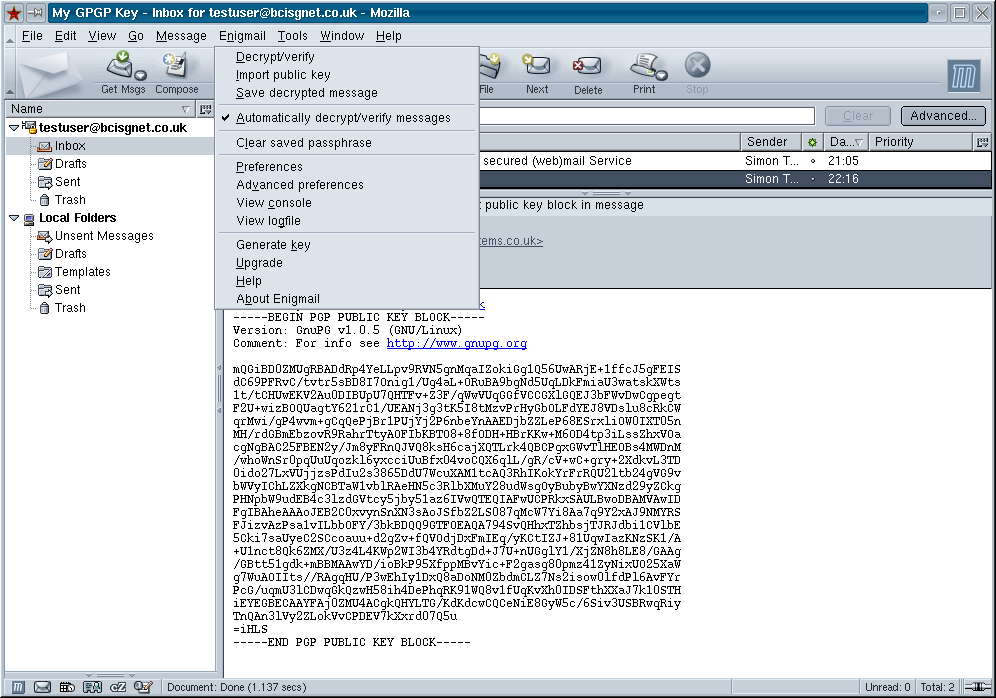
Conversely to add a PGP key embedded in an email
to your private key ring. Click on the Import public key option
in the Enigmail drop down menu.
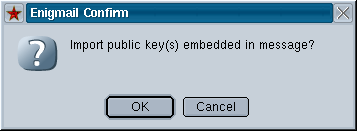
and confirm the import operation.
Note: As stated before before just importing a key does not (as
yet) sign it into you key ring. You will have to revert to gpg command line
with the command gpg --lsign-key or gpg --sign-key (use
gpg --list-keys to get the required key id). Otherwise you can
just rely on the wording Untrusted Good Signature from ... and forget about
the broken pen. Of course signing the signature
fixes the broken pen.
6. Usage
Once you setup the default options as outlined above,
and generated and exported your public key either by email for inclusion
in private key rings or by a public key server,
such as the planned BCISGNet public
keyserver. You can start to use Enigmail for every day use.
Enigmail provides 4 mailing options in the Mozilla composer
-
Signed send
-
Encrypted send
-
Encrypt+sign send
-
Plaintext send
Signed send will wrap a digital signature around the content of your email. Which can be used
by the untented recipient to verify the integrity
of your email in conjunction with your public key.
Encrypted send will send the contents encrypted with a known public
key this is also known as end-to-end encryption as it guarantees
privacy from sender to recipient. Only the recipient (or those with
access to the corresponding private key [see http:// for further discussion
on the UK RIPE laws and private keys]).
Encrypt+sign does what it says on the 'tin'
Plaintext send, is a bit like POTs (plain old telephone system)in telecomms
speak.
Receiving Encrypted and Decrypting (deciphering)
email is completely transparent with the Mozilla MUA and the enigmail frontend
to GnuPG/PGP. no action is required to be taken to decrypt an email (given
it was encrypted with your public key that is) unless you use a passphrase
protected key in which case you must supply the passphrase in a dialog box
prior to decryption. The deciphered text is displayed as with any old plain
text email. However a SMALL key is displayed to denote the content was sent
encrypted.
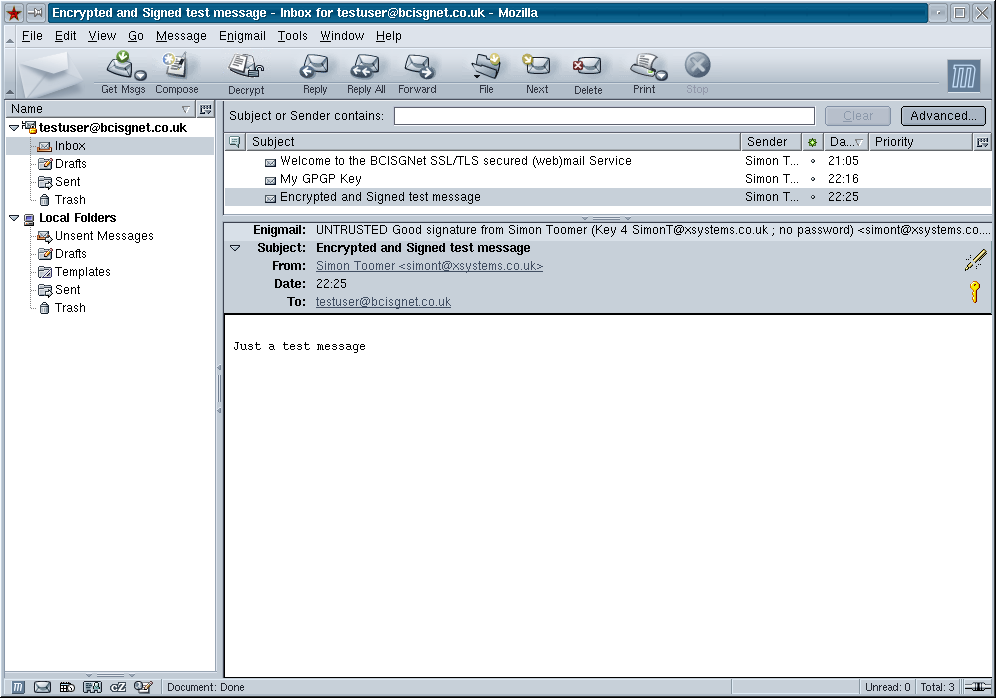
If the email was Digitally signed with either
GnuPG or (Open)PGP then a Good Digital signature will be denoted by the presence
of a pen. A bad signature is indicated by an Enigmail: Error message and
no pen.The broken pen does not indicate a bad signature. It simply represents
an "untrusted" Good signature.
Note: As mentioned before importing a key does not (as yet) sign
it into you key ring. You will have to revert to gpg command line with the
command gpg --lsign-key or gpg --sign-key (use gpg --list-keys
to get the required key id) to sign a key into your keyring. Of course you
can just rely on the wording Untrusted Good Signature from ... and forget
about the broken pen. Signing an imported signature fixes the broken pen.
So that's it from now on its sit back it's enjoy message integrity and
privacy with Digital Signatures and end-to-end (en/de)cryption using Mozilla
with the Enigmail frontend to GnuPG/(open)PGP with minimum
effort in a nice GUI (blech gimme the command line interface any day grin grin).
------
(1) If you don't have unzip may we recommend you check out the rather
nifty Power Archiver (http://www.powerarchiver.com)

(2) The usage of strong encryption
is illegal in certain countries. However the usage of Digital Signatures
is not, which is good enough to ensure message integrity. While end-to-end
(en/de)cryption is currently not illegal in the UK it's usage is permitted under considerable restrictions concerning
the disclosure of encrypted content and private keys to UK authorities under
the UK RIPA law .
For further information concerning the UK RIPA Law please refer to the
official home office
site or read the official publication here, better
still check the three
minute guide to the law on the www.stand.org.uk website. So be prepared
to hand over your keys to any one of the 23 UK RELEVANT AUTHORITIES FOR THE PURPOSES OF SS. 28 AND 29 and any PERSONS HAVING THE APPROPRIATE PERMISSION. It is upto
you to check the relevant law, BCISGNet cannot be held responsible for your
actions (to the extent that is applicable under current UK law that is).
Caveat: Given the often draconian law and legal minefields, regarding
end-to-end (en/de)cryption we do not think it 'the entirely appropriate
answer' to communicating sensitive material over the Internet. There are far more appropriate mechanisms
such as the provision secure end-to-end virtual private networking sessions
(VPNs) with on-the-fly session based key generation, where the keys are
discarded at the end of the session. Over which sensitive material can be
communicated using peer-to-peer messaging, and or intranet mailing. For
further information please do not hesitate to contact us at mailto:info@bcisgnet.co.uk.
Note: Mozilla, Enigmail and GnuPG are open source software products
and are as such provided free for private as well commercial usage under
their respective license agreements. Other products mentioned in this howto
do not necessarily provide such freedom of usage.
Please check all license agreements prior to deployment/dissemination within
your organisation or associates.
This document is (c) copyright BCISGNet Systems 2003